
Set up work order notifications for a facility
Each facility has its own rules for who hears about its work orders. Email and in-app notifications are set up separately, so you could email Managers about emergencies while Technicians follow everything in the app.
Who can do this: Admin, Manager
-
Select Facilities in the sidebar.
-
Select the three-dot menu on the facility’s card, then Notifications.
-
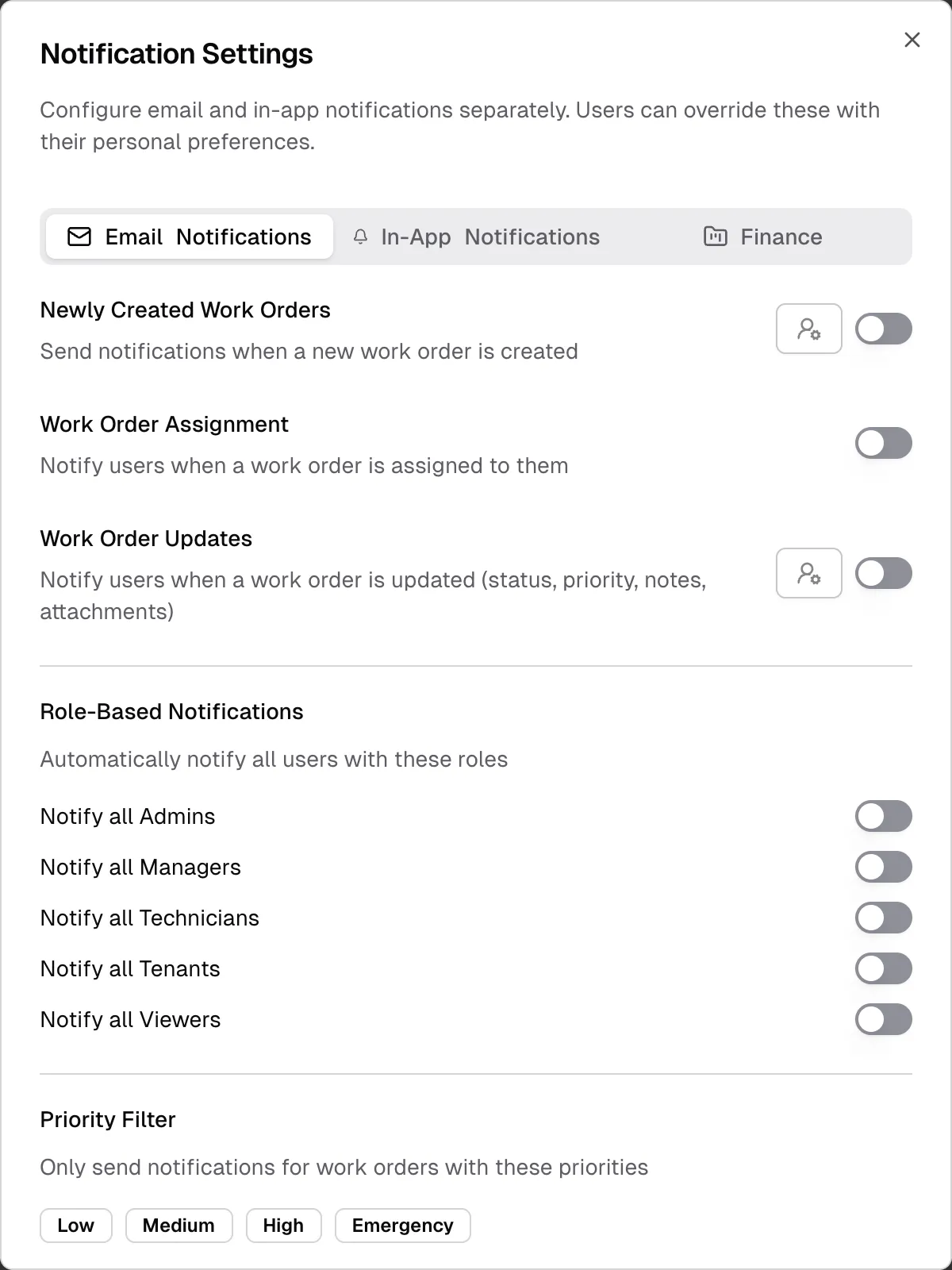
Choose the Email Notifications or In-App Notifications tab. On a phone they’re labeled Email and In-App.
-
Change the settings described below. Each tab has its own settings, so check both.
-
Select Save Settings.
What each setting does
Section titled “What each setting does”Newly Created Work Orders
Section titled “Newly Created Work Orders”Off by default. When it’s on, the people you choose and the roles you turn on are told each time a work order is created.
Work Order Assignment
Section titled “Work Order Assignment”On by default. On the Email Notifications tab, this emails people when a work order is assigned to them.
On the In-App Notifications tab, this switch has no effect. The assigned person always gets an in-app notification, unless they’ve turned those off in their own settings.
Work Order Updates
Section titled “Work Order Updates”On by default. This notifies the people you choose and the roles you turn on, plus the work order’s creator and the person assigned to it.
- Email covers changes to the work order, new notes and new attachments. Updates are grouped, so one email goes out five minutes after the last change. Turning this off stops update emails for everyone, including the creator and assignee.
- In-app covers changes to status, task type, priority, due date, location, description and assignee. Notes and attachments don’t create in-app notifications. The creator and assignee still get these notifications when the switch is off.
Role-Based Notifications
Section titled “Role-Based Notifications”Turn on Notify all Admins, Notify all Managers, Notify all Technicians, Notify all Tenants or Notify all Viewers to include everyone with that role who’s assigned to this facility.
These switches only add people to Newly Created Work Orders and Work Order Updates, so at least one of those must be on. They don’t affect Work Order Assignment.
Priority Filter
Section titled “Priority Filter”Select Low, Medium, High or Emergency to limit Newly Created Work Orders and Work Order Updates to those priorities. If you select none, all priorities count. The filter doesn’t apply to Work Order Assignment.
Choose specific people
Section titled “Choose specific people”-
Turn on Newly Created Work Orders or Work Order Updates.
-
Select the user icon next to the switch.
-
Tick the people you want, then select Done.
Their names appear under the setting. Remember to select Save Settings when you’ve finished.
The list only shows people assigned to this facility. If someone’s missing, assign them to the facility first. People with disabled accounts can’t be chosen.
How this fits with personal settings
Section titled “How this fits with personal settings”These settings decide who can get a notification. Each person can still turn a notification type off for themselves. See Notifications.