
View and find work orders
The Work Orders page lists the work orders at one facility at a time. Use it to see what’s open, find a job and open it to work on it.
Select Work Orders in the sidebar to get there. To see a different facility, switch facilities.
You can only see facilities you created or are assigned to. If you see No Facilities Available, ask an Admin to assign you to a facility.
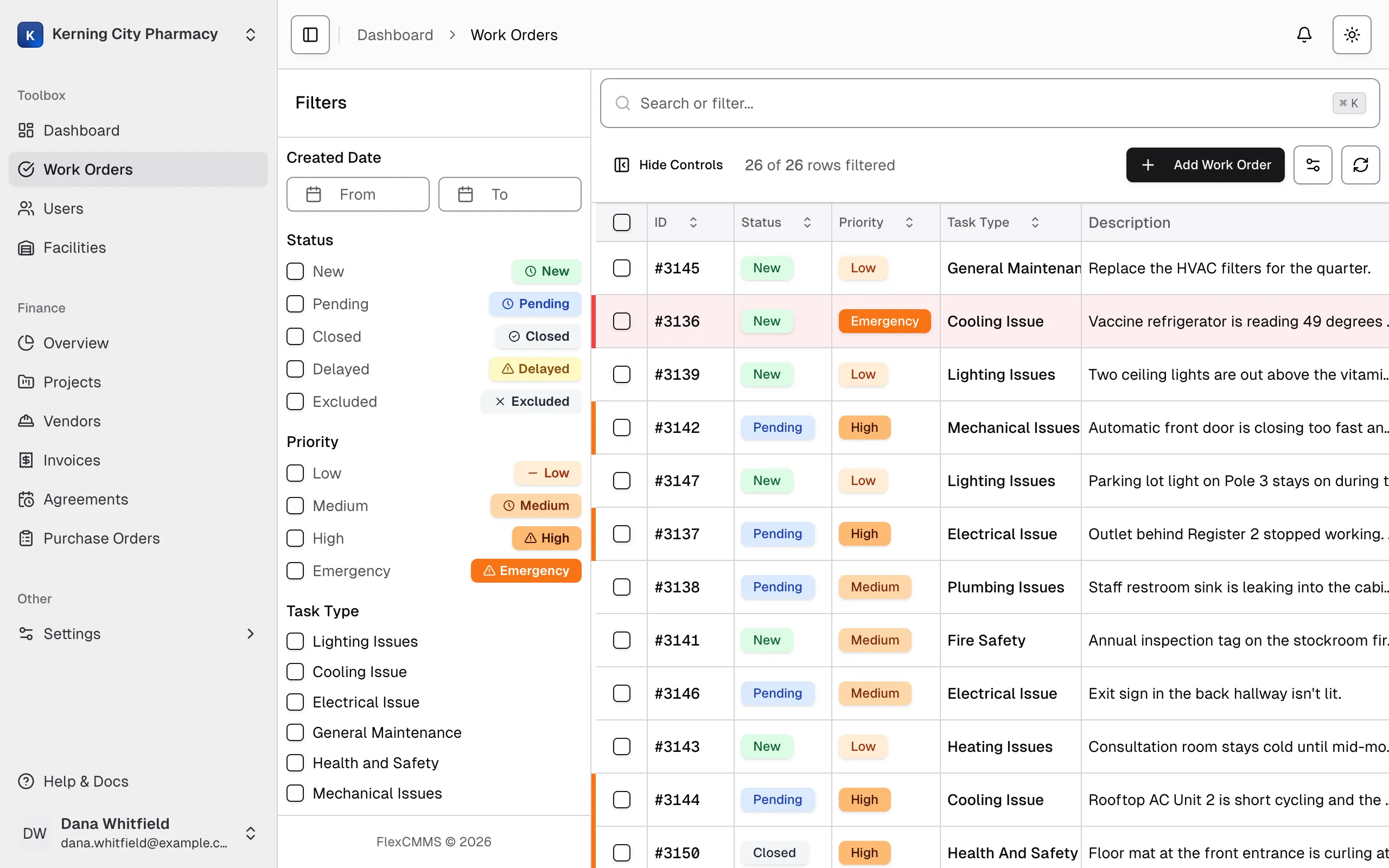
Read the list
Section titled “Read the list”| Column | What it shows | Shown at first |
|---|---|---|
| ID | The work order’s number | Yes |
| Status | Where the job stands. See statuses. | Yes |
| Priority | How urgent it is. See priorities. | Yes |
| Task Type | The kind of work | Yes |
| Description | The first part of the description | Yes |
| Location | Where the work is | Yes |
| Assigned To | The person assigned, or Unassigned | Yes |
| Created By | The person who created it | No |
| Created | The date and time it was created | Yes |
| Due Date | The due date and how long is left, or Overdue | Yes |
| Days Open | Whole days since it was created | No |
| Attachments | How many notes and attachments it has | No |
To show a hidden column, see Choose your columns.
Some rows stand out so you can spot them quickly:
- Red row and “Overdue” in the Due Date column: the due date has passed. This applies to every status, so a Closed work order with a past due date is marked too.
- Red bar on the left edge: Emergency priority.
- Orange bar on the left edge: High priority.
- Orange or red number in Days Open: open more than 30 days (orange) or more than 60 days (red).
Days Open counts from the day the work order was created. It keeps counting after a work order is closed.
The count above the list, such as 12 of 340 rows filtered, shows how many work orders match your filters out of the facility’s total. More rows load as you scroll, or you can select Load More at the bottom of the list.
Open a work order
Section titled “Open a work order”A single click only selects a row. To open a work order:
- On a computer: double-click the row to see a summary, then select Edit for the full work order. You can also right-click the row and select View or Edit.
- On a phone or tablet: press and hold the row, then select View or Edit.
Right-clicking, or pressing and holding, shows this menu:
| Menu item | What it does |
|---|---|
| View | Shows a summary of the work order |
| Edit | Opens the full work order, with Details, Notes and Attachments tabs |
| Audit Log | Shows the work order’s history |
| Opens the print options |
If you’ve selected several rows and open the menu on one of them, only Print is available.
Search
Section titled “Search”Select the search box above the list, or press ⌘K on a Mac or Ctrl+K on Windows.
The search box works by field. Type a field name, a colon and a value. A word on its own doesn’t search anything.
| To find | Type |
|---|---|
| New and Pending work orders | status:new,pending |
| High and Emergency work orders | priority:high,emergency |
| One task type | tasktype:General_Maintenance |
| A location | location:Room_204 |
| A word in the description | description:leak |
| Work orders 30 days old or more | days_open:30 |
A few rules make this work:
- Click outside the box to apply your search.
- Use an underscore for a space, as in
Room_204for “Room 204”. - Use a comma between values to match any of them.
- Put a space between filters to use more than one, as in
status:new priority:high. - Type
statusandpriorityvalues in lowercase. - Type task types exactly as they appear in the list, including capital letters.
locationanddescriptionmatch part of the text, and capitals don’t matter.
After you type status:, priority: or tasktype:, the available values appear below the box and you can select one. Your recent searches appear under Suggestions. To remove them, select Clear suggestions.
You can’t search by work order number. To find a number, sort by ID.
Filter the list
Section titled “Filter the list”The Filters panel sits to the left of the list. To hide or show it on a computer, select Hide Controls or Show Controls, or press ⌘B on a Mac or Ctrl+B on Windows. On a phone, select the filter icon next to the row count.
| Filter | How to use it |
|---|---|
| Created Date | Pick a From date and a To date |
| Status | Tick one or more statuses |
| Priority | Tick one or more priorities |
| Task Type | Tick one or more task types. Only task types already used at this facility appear. |
| Location | Type part of the location |
| Description | Type part of the description |
| Due Date | Pick a From date and a To date |
| Days Open | Type a number to see work orders that have been open at least that many days |
To remove one filter, select the X beside it. To remove them all, select Reset at the top of the panel.
Flex CMMS remembers your filters for each facility in the browser you’re using. If the list looks shorter than you expected, check for a filter left on from last time.
Sort the list
Section titled “Sort the list”Select a column heading, then Asc or Desc. You can sort by ID, Status, Priority, Task Type, Created, Due Date and Days Open. Select Clear sorting to go back to newest first.
Status also has Sort New First, which lists New, Pending, Delayed, Closed, then Excluded.
Choose your columns
Section titled “Choose your columns”To change your columns, select the View button with the sliders icon, next to the refresh button. Then:
- Select a column name to show or hide it.
- Drag the handle beside a name to move the column.
You can also hide a column from its heading menu.
There are no named views to save. Flex CMMS remembers your columns and sort order for each facility in the browser you’re using.
Select work orders
Section titled “Select work orders”Selecting work orders lets you print several at once.
- Select the checkbox at the start of a row.
- Hold ⌘ on a Mac or Ctrl on Windows and click rows to add them.
- Hold Shift and click to select a range.
- Select the checkbox in the heading to select every row loaded so far.
To start again, select Clear selection.
See other people’s changes
Section titled “See other people’s changes”The list keeps itself up to date. When someone else creates or changes a work order at this facility, a short message tells you who did it and the list updates. See Work on a work order with other people.