
Create your account
There are two ways to get an account: accept an invitation from your company’s Admin, or sign up on your own. If you have an invitation, use it. It puts you in the right company with the right role.
If your Admin already gave you a username and password, you don’t need this page. Log in at app.flexcmms.com.
Accept an invitation
Section titled “Accept an invitation”-
Open the invitation email and select Accept Invitation. The link works for 7 days.
-
Check the line under Create an account. It shows the company you’re joining and your role. Your email address is filled in for you and can’t be changed.
-
Enter your First Name and Last Name. Each one must be 2 to 20 characters, using letters only.
-
Check the Username. Flex CMMS suggests one after you type your name. It must be 6 to 16 characters, using letters, numbers, periods, underscores or hyphens. Long suggestions can go over the limit, so shorten yours if you see an error.
-
Enter a Password of at least 8 characters, then type it again in Confirm Password.
-
Select Create Account.
You’ll see Registration Complete, and then the login page opens. You can’t log in yet, because your account still needs approval.
Sign up on your own
Section titled “Sign up on your own”-
Go to app.flexcmms.com/signup. The login page doesn’t link to it, so use this address.
-
Enter your Full Name, with both your first and last name.
-
Enter your Email.
-
Enter a Password of at least 8 characters, then type it again in Confirm Password.
-
Select Sign Up. The Check Your Email page opens.
-
Open the verification email and select Verify Email Address. The link works for 24 hours.
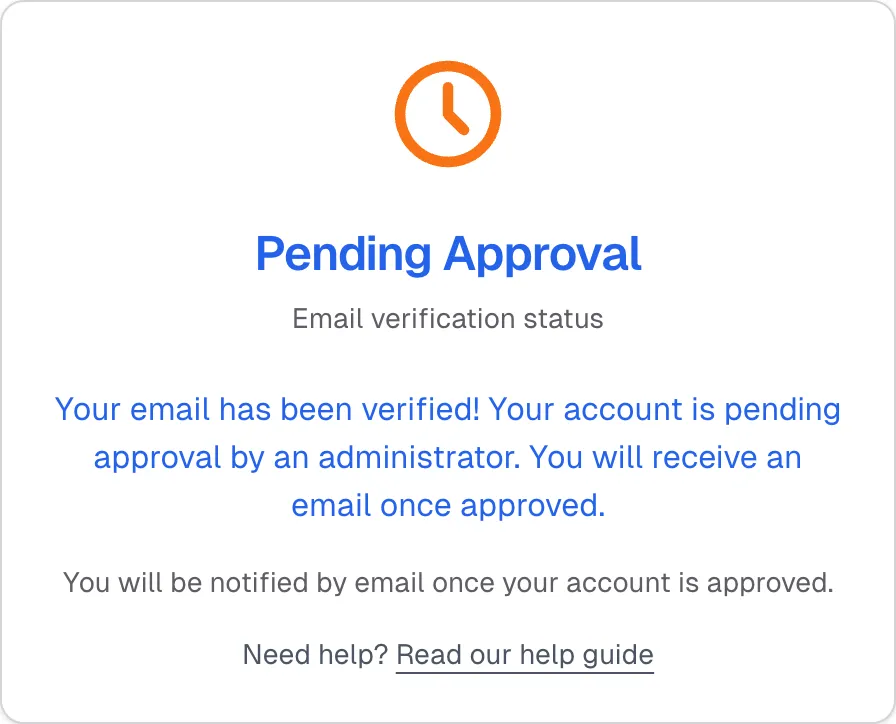
Once your email is verified, you’ll see Pending Approval.
If the verification email doesn’t arrive
Section titled “If the verification email doesn’t arrive”Check your spam or junk folder first, because the email can take a few minutes to arrive. To get a new link:
-
On the Check Your Email page, select Resend Verification Email.
-
Enter your email address and select Send Verification Email.
A new link replaces the old one, so use the most recent email.
Wait for approval
Section titled “Wait for approval”Every new account has to be approved before it can log in, whether you were invited or signed up on your own. Flex CMMS handles this step, and your company’s Admin can’t do it for you.
You don’t need to do anything while you wait. When your account is approved, you’ll get a welcome email with a Log In Now button.
What each state looks like
Section titled “What each state looks like”| What you see | What it means | What to do |
|---|---|---|
| Check Your Email page | Your email address isn’t verified yet. The login page sends you here until it is. | Select the link in the verification email, or request a new one. |
| Pending Approval page | Your email is verified and your account is waiting for approval. | Wait for the welcome email. |
| Login message: “Your account is pending approval by an administrator.” | Your account is still waiting for approval. | Wait for the welcome email. |
| Welcome email with Log In Now | Your account is approved. | Log in. |
| Login message: “Your account registration was not approved.” | Your account was denied. You won’t get an email about this. | Email support@flexcmms.com if you think it’s a mistake. |
| Login message: “Your account has been disabled.” | An Admin turned off your account. | Contact your company’s Admin. |
| Verification Failed page | The link has expired or was replaced by a newer one, or you’ve already used it. | If you’ve already seen Pending Approval, ignore this and wait for the welcome email. If not, select Request New Verification Email. |
| Invalid or Expired Invitation page | The invitation expired, was cancelled or was already used. | Ask your company’s Admin to send a new one. |