
Finance overview
Finance tracks the money side of running a facility: tenant projects, the vendors who do the work, the bills they send, recurring service agreements and purchase orders. The Overview page shows what needs attention, what you owe, what you’ve committed and where the money is going.
Who can do this: Admin, Manager
Who can use Finance
Section titled “Who can use Finance”Finance is only for Admins and Managers. Technicians, Tenants and Viewers don’t see it in the sidebar. If they open a Finance link, they’re sent back to the dashboard.
Both roles see Finance records only for the facilities they have access to. Finance lists cover all of those facilities, not just the one selected in the facility switcher. When you add a record, the Facility field starts on the facility you have selected.
Admins and Managers can do almost everything in Finance. Only an Admin can:
- Delete a project
- Deactivate or reactivate a vendor
- Void an invoice, undo a void, or delete an invoice
- Delete a payment
- Delete a service agreement
- Approve a purchase order or send it back
- Delete a draft purchase order
- Change PO settings
How the pieces fit together
Section titled “How the pieces fit together”Finance has five areas in the sidebar, plus the payments you record on invoices:
- Vendors are the companies you pay. Each vendor belongs to one facility, and bids, invoices, agreements and purchase orders all point at a vendor.
- Projects track work a tenant asks for, from the Scope of Work through vendor bids and your proposal to the document that authorizes the work.
- Purchase Orders approve spending with a vendor before the bill arrives. They’re optional, and every one needs an Admin’s approval.
- Agreements are recurring vendor services, like monthly pest control. Each billing period expects one bill.
- Invoices are every bill a vendor sends. All spending ends up here, whichever way it started.
- Payments belong to an invoice. An invoice’s balance and its Paid or Partially paid label come from its payments.
Every invoice has a cost type, which decides what it can link to:
| Cost type | Use it for | It can link to |
|---|---|---|
| Project | Work on a tenant project | A project (required), the vendor’s bid on that project, and a purchase order |
| Operating | Recurring services | A service agreement billing period and a purchase order |
| Maintenance | Preventive or reactive repairs | A work order, a service agreement billing period and a purchase order |
Everything linked to a record must be at the same facility. A project at Kerning City Pharmacy can only use vendors, purchase orders and invoices at Kerning City Pharmacy.
Read the Finance Overview page
Section titled “Read the Finance Overview page”In the sidebar under Finance, select Overview.
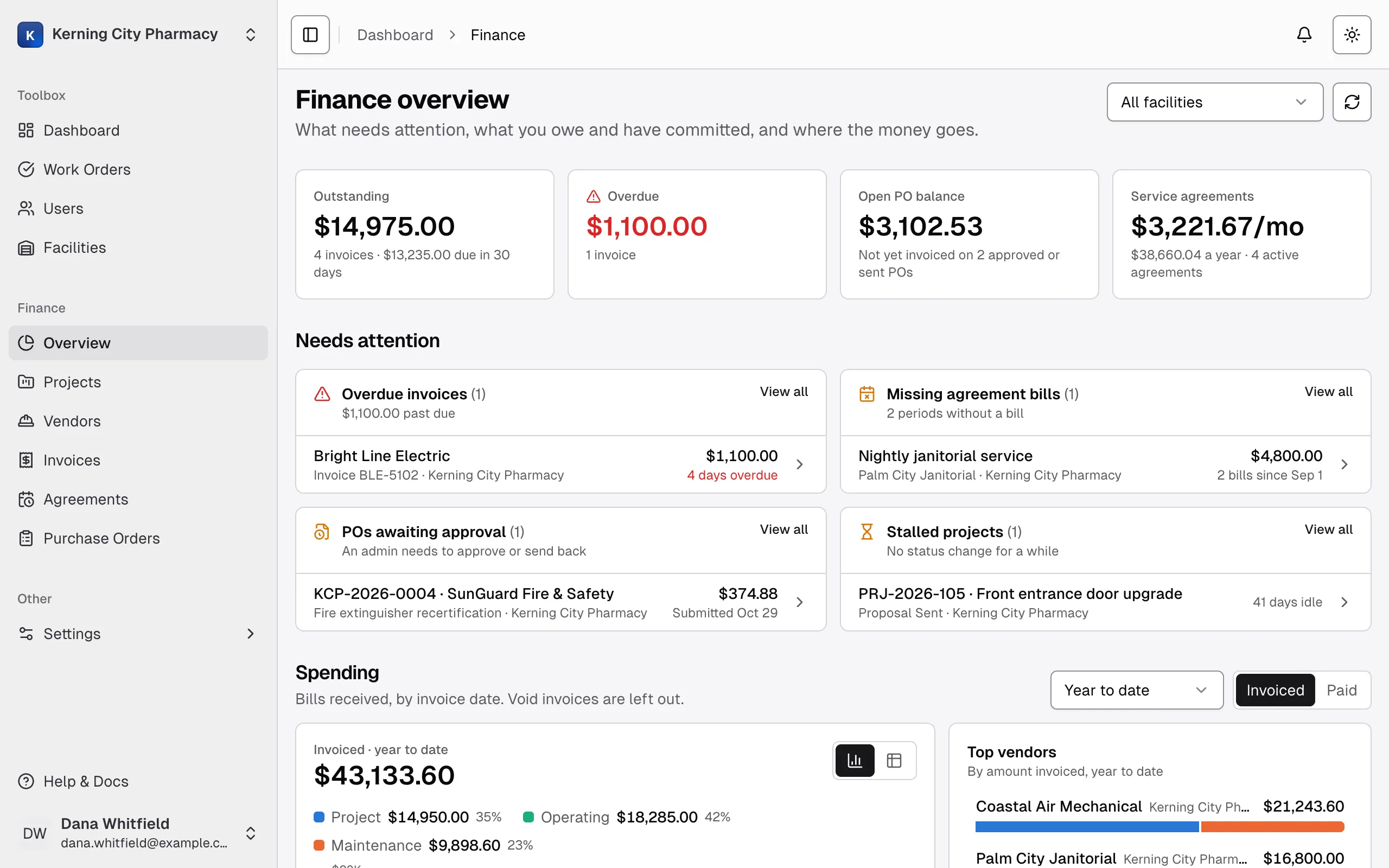
If you have access to more than one facility, use the facility list at the top to see one or all of them. It applies to the whole page. The date range applies only to Spending and Top vendors. The tiles, Needs attention and Open projects always show where things stand today.
The page remembers your facility, date range and Invoiced or Paid choice in this browser.
The four tiles
Section titled “The four tiles”Select a tile to open the list behind it.
| Tile | What it adds up |
|---|---|
| Outstanding | The balance due on every invoice that isn’t void and isn’t fully paid. This includes disputed invoices and invoices with no due date. The small print shows how much is due in the next 30 days. |
| Overdue | The balance due on invoices past their due date. Disputed invoices don’t count, and an invoice with no due date is never overdue. |
| Open PO balance | For each Approved or Sent purchase order, the PO total minus its invoices. Void invoices don’t count. A PO invoiced past its total counts as $0. Drafts and POs awaiting approval aren’t included. |
| Service agreements | What your active agreements cost per month, plus that figure times 12. A $300 quarterly agreement counts as $100 a month. An agreement is active until its end date has passed. |
Needs attention
Section titled “Needs attention”A group appears only when it has something in it. If nothing does, you see Nothing needs attention. Each group lists up to five records, and you can select one to open it.
| Group | What puts a record here |
|---|---|
| Overdue invoices | The same invoices as the Overdue tile, oldest due date first. |
| Missing agreement bills | A billing period that started more than 15 days ago and has no invoice. Ended agreements count too. The amount shown is the agreement’s amount times the number of missing periods. |
| POs awaiting approval | Purchase orders submitted for approval. An Admin needs to approve them or send them back. |
| Projects past target date | The target completion date has passed and the project isn’t Work Complete, Closed or Cancelled. |
| Stalled projects | The project isn’t Closed or Cancelled and its status hasn’t changed for the facility’s stalled-days setting, which is 30 days unless someone changes it. See Finance notifications and reminders. |
View all opens the full list for all your facilities, even if you’ve narrowed the page to one. For projects it opens the Projects page with no filter, so use the Past target date and Stalled 30+ days tiles there.
Spending
Section titled “Spending”Choose a range: This month, This quarter, Year to date, Last 12 months or Last year. The first two show a column per week, and the others show a column per month.
Then choose what to measure:
- Invoiced adds up invoices by invoice date. If an invoice has no invoice date, it uses the date received, then the date it was entered.
- Paid adds up payments by the date paid.
Void invoices never count. Each column is split by cost type, and the legend shows each type’s total and share. Use the chart and table icons to switch views. The table is the easiest way to read exact amounts on a phone.
Top vendors lists the eight vendors with the most spending for the same range and measure, and adds the rest up as other vendors. Select a vendor to open it.
Open projects
Section titled “Open projects”This table compares what’s been authorized on a project with what vendors have billed. It lists projects that have an authorized amount or an invoice, except projects that are Closed, Cancelled or Proposal Rejected. On Hold projects stay in the list.
| Column | What it means |
|---|---|
| Authorized | The total of the authorized amounts on the project’s NTP, LA and SLA documents. Shows No NTP / SLA amount if there isn’t one yet. |
| Invoiced | The total of the project’s invoices, not counting void ones. |
| Paid | Payments made on those invoices. |
| Remaining | Authorized minus Invoiced, not minus Paid. If more has been invoiced than authorized, it shows Over by in red. |
The bar under each project shows paid, invoiced but not paid, and authorized but not invoiced. In the total row, Remaining subtracts any amounts that are over and skips projects with no authorized amount. The list shows eight projects until you select Show all.
When a number doesn’t match another page
Section titled “When a number doesn’t match another page”- Open commitments on the Purchase Orders page can be lower than Open PO balance. There, a PO invoiced past its total subtracts from the figure. On the Overview page it counts as $0.
- Stalled 30+ days on the Projects board can differ from Stalled projects here. The board always uses 30 days and leaves out On Hold and Proposal Rejected projects. The Overview page uses each facility’s setting and includes them.