
Lock closed work orders
Lock closed work orders is a facility setting that stops people changing a work order by accident once it’s closed. When it’s on, the work order window opens Closed work orders as read-only.
Who can do this: Admin, Manager
You need to be assigned to the facility, or to have created it.
-
Select Facilities in the sidebar.
-
Select the three-dot menu on the facility’s card, then Completion Rules.
-
Turn on Lock closed work orders.
-
Select Save Changes.
What the work order window does
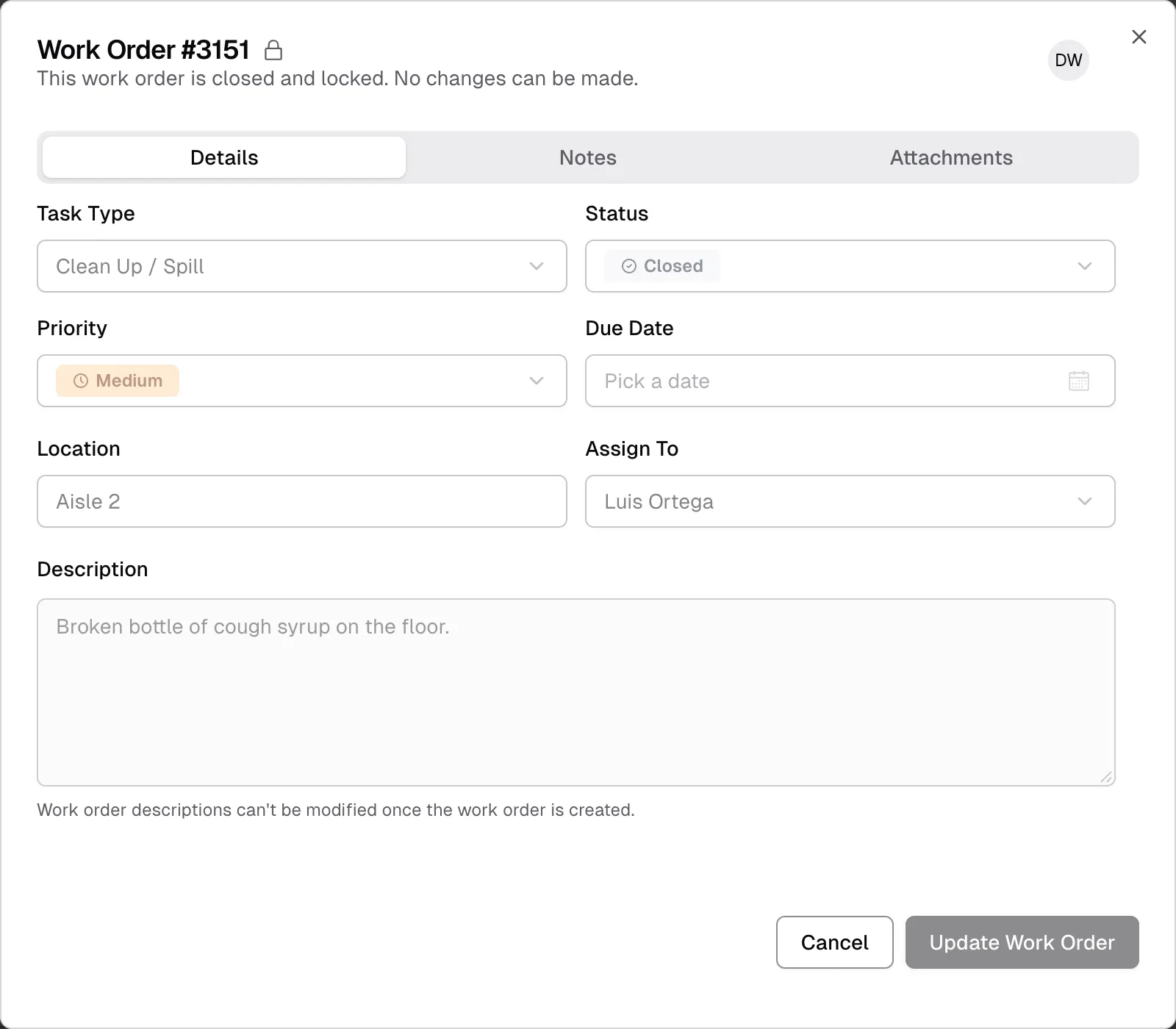
Section titled “What the work order window does”For a Closed work order at this facility, the window looks the same for every role:
- A lock icon appears next to the work order number, with the message “This work order is closed and locked. No changes can be made.”
- The fields on the Details tab are unavailable, and so is Update Work Order.
- The Notes tab says “Notes cannot be added to closed work orders”, and the delete button is gone from each note.
- The Attachments tab has no upload area, and the delete button is unavailable.
You can still read the work order and its notes, preview and download attachments, print it and open its Audit Log.
Reopen a locked work order
Section titled “Reopen a locked work order”The Status field is unavailable on a locked work order, so an Admin or Manager needs to turn the setting off first.
-
Turn off Lock closed work orders, using the steps above.
-
Turn Lock closed work orders back on if you want to keep using it.