
Require a note to close work orders
Completion rules let you require a note before a work order at a facility can be closed. Use them when you want a written record of what was done on every job.
Who can do this: Admin, Manager
You need to be assigned to the facility, or to have created it.
-
Select Facilities in the sidebar.
-
Select the three-dot menu on the facility’s card, then Completion Rules.
-
Turn on Require closure notes.
-
Select Save Changes.
To turn the rule off, follow the same steps and turn off Require closure notes.
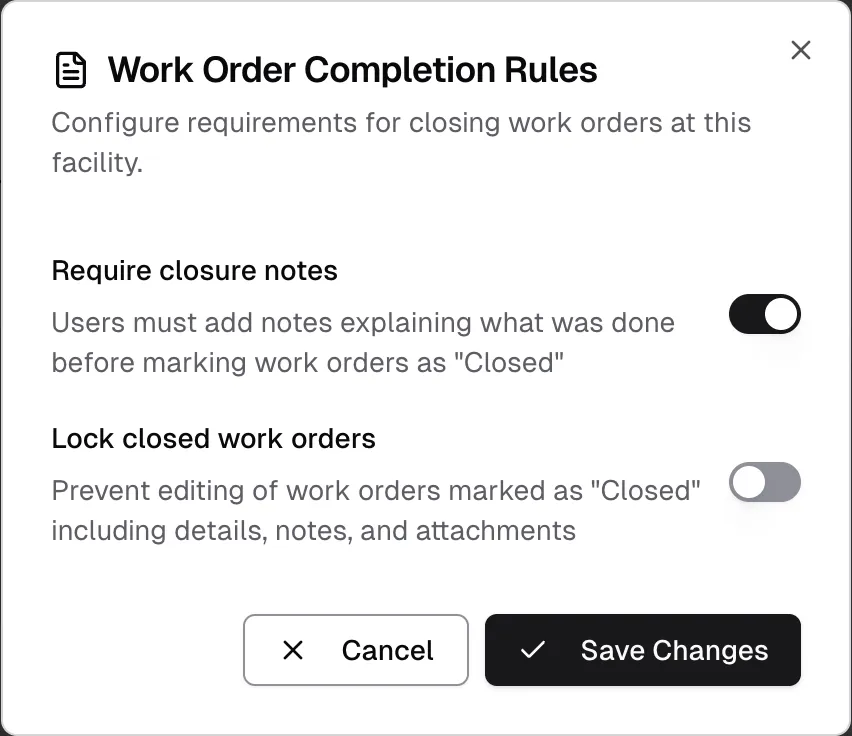
What the rule does
Section titled “What the rule does”When the rule is on, anyone closing a work order at that facility sees the Close Work Order window. They pick the note that explains what was done, or add a new one. See Close a work order.
- It applies to one facility. Each facility has its own setting.
- It applies to every role. Admins and Managers need a note too.
- It only applies when changing to Closed. Other status changes aren’t affected.
- It doesn’t change work orders that are already closed. If one is reopened and closed again, the rule applies then.
Write a useful closing note
Section titled “Write a useful closing note”Say what was wrong, what you did, and how you checked it worked. For example:
Replaced the leaking shutoff valve under the sink in Room 204. Ran the water for 10 minutes and found no leaks.
Keep closing notes in place
Section titled “Keep closing notes in place”The rule checks for a note at the moment of closing. A note can still be deleted afterward. The deleted note’s text stays in the Audit Log.
To remove the option to delete notes from closed work orders, also turn on Lock closed work orders.