
Fix login problems
Find the message you’re seeing, then follow the steps under it.
The messages about your account (not verified, pending, not approved or disabled) only appear after you enter the correct password. If your password is wrong, you see the wrong password message instead.
Wrong email, username or password
Section titled “Wrong email, username or password”You’ll see one of these on the login page, depending on what you typed:
Invalid email or password
Invalid username or password
Flex CMMS doesn’t say which part is wrong, so check both.
- Passwords are case-sensitive. Select the eye icon in the Password box to see what you typed.
- Emails and usernames aren’t case-sensitive, but they must be spelled exactly.
- If you signed up on your own, you may not have a username. Use your email instead.
If it still doesn’t work, reset your password.
Forgotten password
Section titled “Forgotten password”-
On the login page, select Forgot password?.
-
Enter the email on your account, then select Send Reset Link. A username won’t work here.
-
Open the email with the subject FlexCMMS Password Reset, then select Reset Password. The link lasts one hour.
-
On the page that opens, select Verify Reset Link.
-
Enter your new password in New Password and Confirm Password. It must be at least 8 characters.
-
Select Reset Password.
You’ll see Password Reset Successful, then Flex CMMS takes you to the login page. Your password change logs you out everywhere else, so you’ll need to log in again on your other devices.
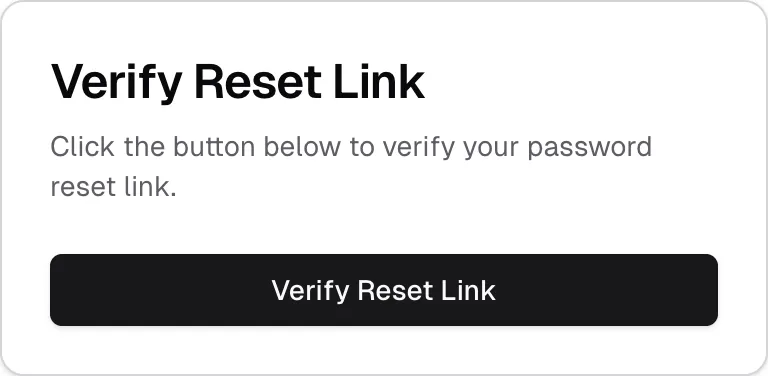
If the email doesn’t come, see Fix emails that don’t arrive.
If the reset link doesn’t work
Section titled “If the reset link doesn’t work”| What you see | What it means |
|---|---|
| This password reset link has expired. Please request a new one. | The link is more than one hour old. |
| This password reset link is invalid or has already been used. | You already used this link, or you requested a newer one. Only the newest link works. |
| The password reset link is invalid or has expired. | The link is incomplete. If you copied it from the email, copy the whole link. |
For each of these, select the button on the page to request a new link.
Email not verified
Section titled “Email not verified”You won’t see an error. Flex CMMS takes you to a page called Check Your Email instead:
We’ve sent you a verification link to complete your account setup
-
Find the email with the subject Verify Your Email Address - FlexCMMS. Check your spam or junk folder too.
-
Select Verify Email Address in the email. The link lasts 24 hours.
-
Wait for your account to be approved. See Account pending approval.
To get a new link, select Resend Verification Email on the Check Your Email page, enter your email, then select Send Verification Email. Only the newest link works.
If you joined through an invitation, or an Admin created your account, you skip this step.
If the verification link doesn’t work
Section titled “If the verification link doesn’t work”You’ll see Verification Failed and this message:
This verification link is invalid or has expired. Please request a new verification email.
Each link only works once. If you’ve already selected it, your email is verified, so try logging in. Requesting a new link won’t send anything in that case.
If you haven’t used it, the link has expired. Select Request New Verification Email.
If you used the wrong email
Section titled “If you used the wrong email”Select Create a new account on the Check Your Email page and sign up with the right address. If you try to sign up again with the same address, you’ll see Email already exists, so use the verification link instead.
Account pending approval
Section titled “Account pending approval”Your account is pending approval by an administrator. You will receive an email once your account is approved.
Accounts created through sign-up or an invitation are reviewed before they can be used. You see a similar message on the Pending Approval page right after you verify your email.
You don’t need to do anything else. When your account is approved, you’ll get an email with the subject Welcome to FlexCMMS - Your Account is Approved!, and you can log in.
If you’ve been waiting a while, email support@flexcmms.com.
Account not approved
Section titled “Account not approved”Your account registration was not approved. Please contact an administrator if you believe this is an error.
Your account was reviewed and turned down. Flex CMMS doesn’t send an email about this, so this message may be the first you hear of it.
If you think it’s a mistake, email support@flexcmms.com.
Account disabled
Section titled “Account disabled”Your account has been disabled. Please contact an administrator for assistance.
An Admin has turned off your account. If you were already logged in, Flex CMMS returns you to the login page.
Resetting your password won’t turn it back on. Contact your company’s Admin, who can enable your account.
Invitation link doesn’t work
Section titled “Invitation link doesn’t work”You’ll see Invalid or Expired Invitation and this message:
The invitation link is no longer valid.
An invitation lasts 7 days and only works once.
- If you’ve already created your account, go to the login page and log in.
- If the invitation expired, ask your company’s Admin to send it again.
Still can’t log in
Section titled “Still can’t log in”Contact your company’s Admin. They can check your account and set a new password for you from the Users page. If you don’t have an Admin, or they can’t fix it, email support@flexcmms.com.
If you see Internal server error, the problem isn’t with your details. Wait a few minutes and try again.