
Print work orders or save them as a PDF
Flex CMMS creates a PDF of the work orders you choose. You can print it, save it or send it to someone. PDF is the only export format, so there’s no spreadsheet download.
-
Select Work Orders in the sidebar.
-
To print one work order, right-click its row and select Print. On a phone or tablet, press and hold the row.
-
To print several, select them and select Print Selected. On a phone, this is the printer button with a number beside it.
-
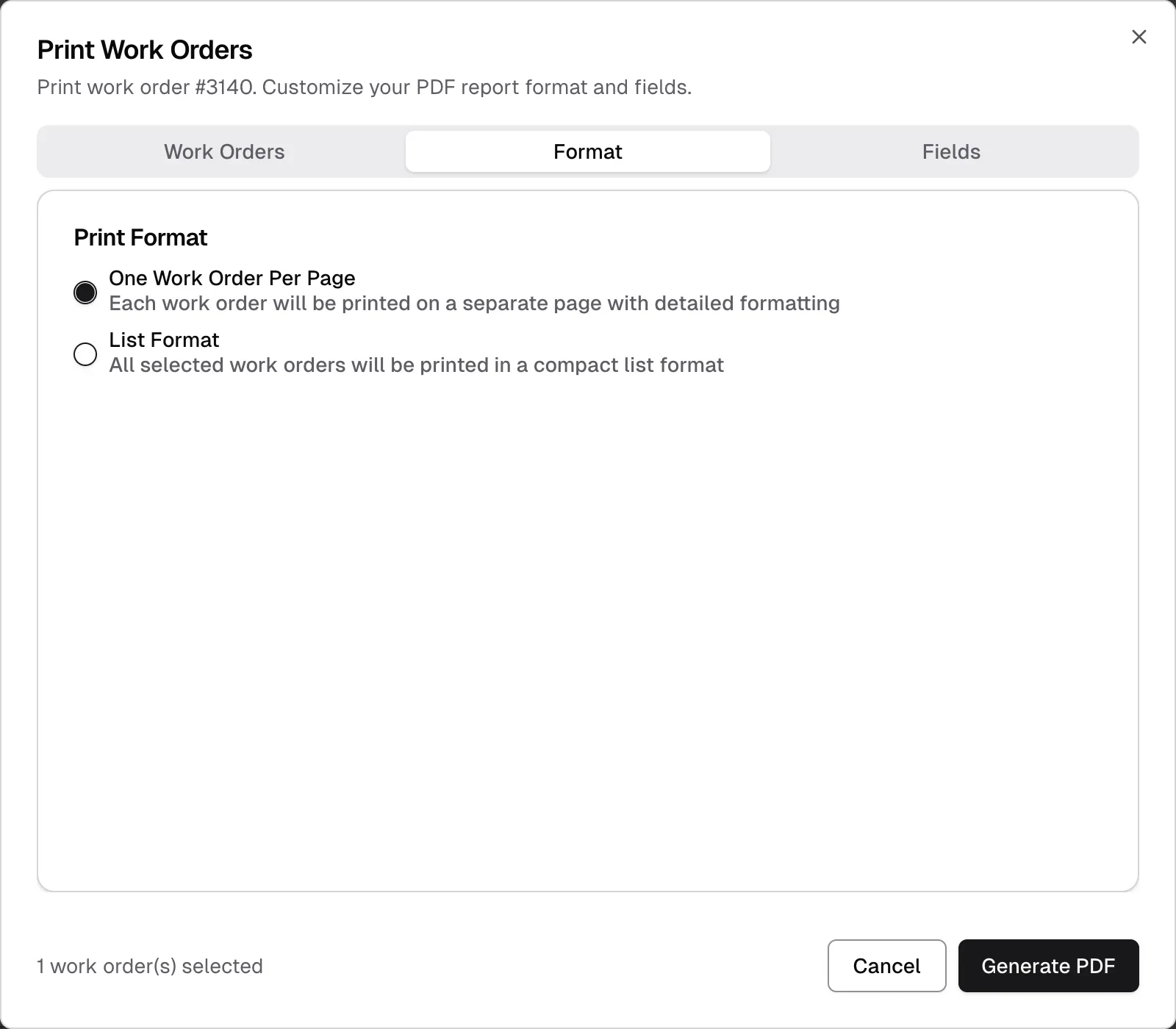
In the Print Work Orders window, check your choices on the Work Orders, Format and Fields tabs.
-
Select Generate PDF.
The PDF downloads to your device. Its name starts with FlexCMMS-Report-PerPage or FlexCMMS-Report-List, followed by the date.
Your choices
Section titled “Your choices”Work Orders
Section titled “Work Orders”Untick any work orders you want to leave out. Use Select All or Deselect All to change them all at once.
Format
Section titled “Format”- One Work Order Per Page: each work order gets its own page. This is the default.
- List Format: all the work orders run one after another in a compact list.
Fields
Section titled “Fields”Tick the fields to include: Task Type, Status, Priority, Due Date, Location, Assigned To, Notes and Attachments. All are ticked at first, except Attachments.
Every work order also shows its number, description, who created it and when. These can’t be turned off.
Attachments prints how many files a work order has, not the files themselves. To get a copy of a file, download it.
Select more work orders
Section titled “Select more work orders”You can only select rows that have loaded. To print more than you can see, scroll down or select Load More first, then select them.