
Create a work order
Create a work order when something needs doing at a facility, like a leak to fix or a light to replace. It goes into that facility’s list, where your team can pick it up.
Who can do this: Admin, Manager, Technician, Tenant
-
Select Work Orders in the sidebar and check you’re on the right facility. The work order is created at the facility you have selected.
-
Select Add Work Order. On a phone, this is the plus button.
-
Fill in Task Type, Priority, Location and Description.
-
To add files, go to the Attachments tab and choose them. You can skip this and add them later.
-
On the Details tab, select Create Work Order.
The work order appears in the list with the status New and its own number. If you added files, they upload now, and the button shows how many are waiting.
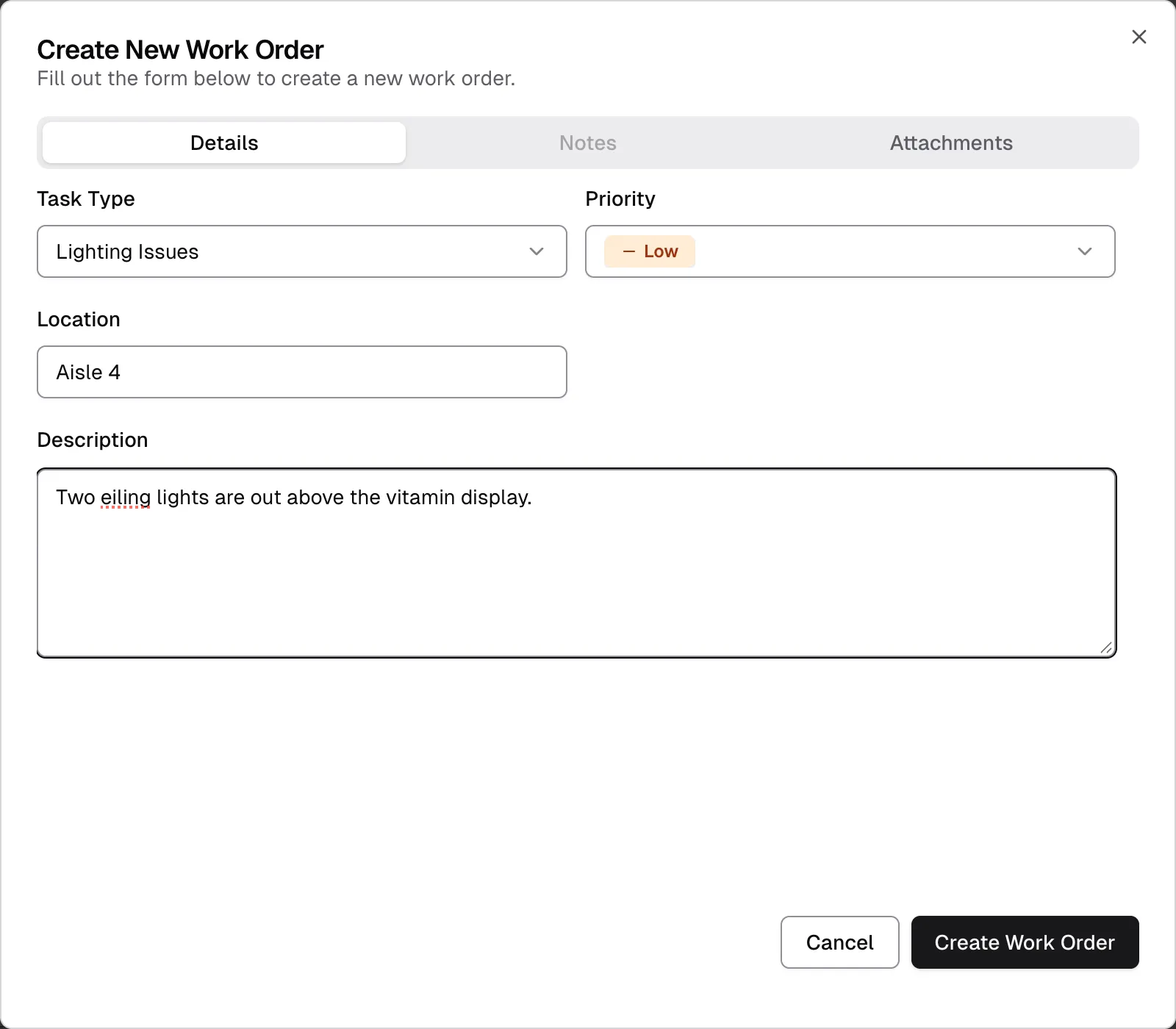
Fields
Section titled “Fields”| Field | Required | What to enter |
|---|---|---|
| Task Type | Yes | The kind of work. The list comes from the facility’s task types. |
| Priority | Yes | Low, Medium, High or Emergency. It starts at Low. See priorities. |
| Location | Yes | Where the work is, such as “Room 204” or “Stock room”. |
| Description | Yes | What’s wrong or what needs doing. |
| Attachments | No | Photos or documents, up to 20 MB each. See attachments for the file types. |
What you can’t set yet
Section titled “What you can’t set yet”These aren’t on the form. Add them after the work order is created:
- Status: every work order starts as New.
- Due Date: edit the work order to set one.
- Assign To: an Admin can assign the work order.
- Notes: the Notes tab opens once the work order exists. See notes.
If you can’t create a work order
Section titled “If you can’t create a work order”- There’s no Add Work Order button. You have the Viewer role, which is view-only. See what each role can do.
- You see “This facility is disabled”. You can’t create work orders at a disabled facility. See Disable a facility.
- You see “Work order created but some files failed to upload”. The work order was saved. Open it and add the files from the Attachments tab.