
Invite users
Invite someone when you want them to set up their own login. They get an email with a link, create their account, and join your company with the role you chose.
Who can do this: Admin
-
Select Users in the sidebar.
-
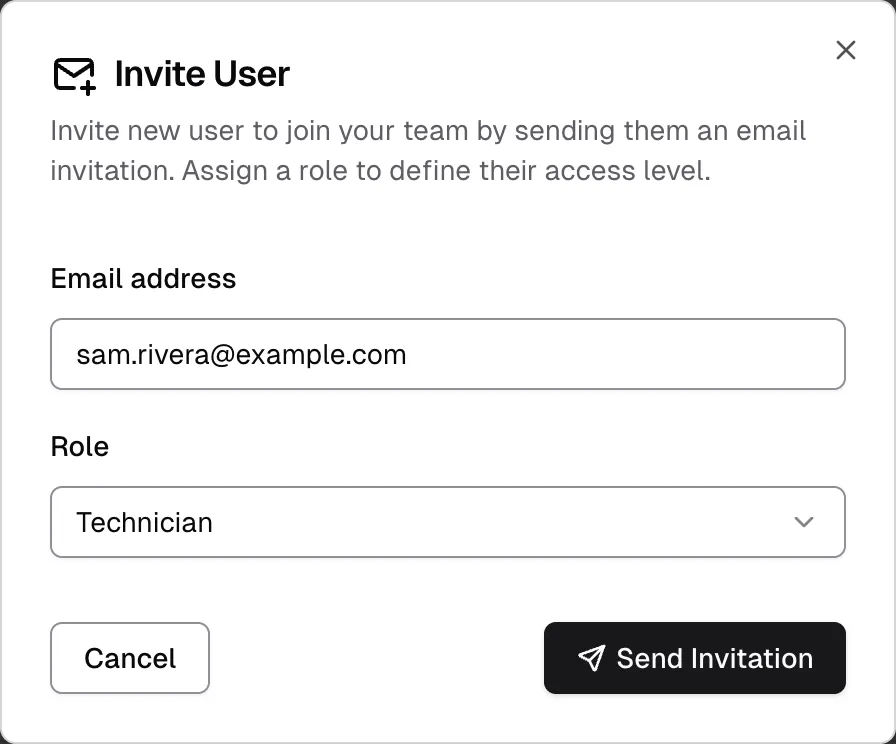
Select Invite User.
-
In Email address, enter the person’s email.
-
In Role, choose Admin, Manager, Technician, Tenant or Viewer. See Roles and permissions if you’re not sure.
-
If you belong to more than one company, choose one in Company.
-
Select Send Invitation.
The person appears in your list with the status Invited and “Pending invite” in place of their name. They have 7 days to accept.
What happens next
Section titled “What happens next”-
The person selects Accept Invitation in the email and fills in the form.
-
Their status changes to Pending Approval. They can’t log in yet. Flex CMMS handles approvals, so there’s nothing for you to do.
-
When they’re approved, their status changes to Active and they get a welcome email.
-
Assign them to at least one facility, using Assign Users in the facility’s menu. They can’t see any work orders until you do. You can do this as soon as they’ve registered, without waiting for approval.
If the person already has an account
Section titled “If the person already has an account”If the email address already has a Flex CMMS account, you’ll see User Already Exists with an Add to Company button.
-
Select Add to Company. The message disappears after a few seconds. If you miss it, select Send Invitation again.
-
Check the person’s role. They keep the role they already had, not the one you chose in the dialog. To change it, see Change a user’s role or details.
-
Assign them to a facility.
You can’t add someone who already belongs to another company. You’ll see an error, and they stay in their current company.
If the invitation doesn’t go through
Section titled “If the invitation doesn’t go through”| Message | What it means | What to do |
|---|---|---|
| “This email address already has a pending invitation for this company” | You’ve already invited this person. | Resend the invitation. |
| “This user is already a member of this company” | They’re already in your list. | Nothing. To change their role, edit the user. |
| “Please select a company” | You belong to more than one company and haven’t chosen one. | Choose a company in Company, then send it again. |
| “No company was found for your account” | Your login isn’t linked to a company. | Email support@flexcmms.com and ask to be added to your company. |