
Choose your notifications
Flex CMMS tells you about work by email and through the bell at the top of the screen. Your notification preferences let you choose which ones you want.
Who can do this: Everyone can change their own preferences. Admin and Manager also get the Finance options, and can change a facility’s notification settings.
How Flex CMMS decides who gets a notification
Section titled “How Flex CMMS decides who gets a notification”Two things have to line up before you get a notification:
- The facility’s settings decide who a notification can go to.
- Your own preferences decide whether you want it.
Your preferences can only turn a notification off. Turning a switch on doesn’t add you to a list the facility hasn’t put you on, so if you’re missing notifications, see Fix emails that don’t arrive.
Change your preferences
Section titled “Change your preferences”-
Select Settings in the sidebar, then Notifications. You can also select the bell at the top of the screen, then Notification settings.
-
Under Email Frequency, choose an option.
-
Turn the Email and In-App switches on or off for each notification.
-
Select Update preferences.
Nothing is saved until you select Update preferences. Every notification starts turned on, with Email Frequency set to Immediate.
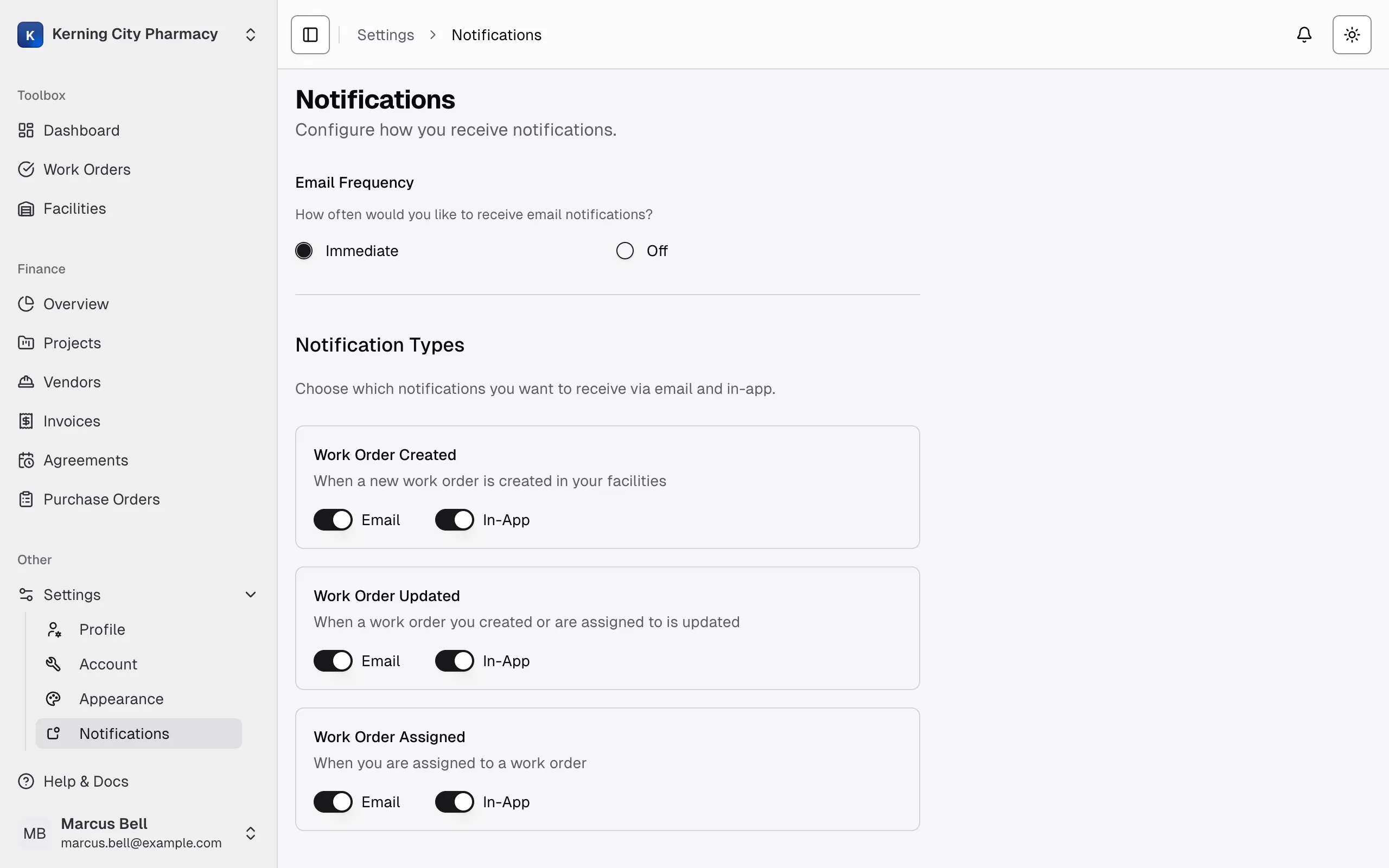
Email Frequency
Section titled “Email Frequency”| Option | What happens |
|---|---|
| Immediate | You get each email as it’s sent. |
| Off | You get no work order or Finance emails, and the Email switches are grayed out. In-app notifications keep working. |
To get fewer emails, turn off the Email switches you don’t need, or select Off.
Off only covers notifications. You still get account emails, such as password resets.
Work order notifications
Section titled “Work order notifications”Everyone sees these three under Notification Types.
Work Order Created
Section titled “Work Order Created”Sent when someone creates a work order in a facility.
You only get this if the facility includes you, either by name or through your role. It’s off for each facility until an Admin or Manager turns it on. You don’t get the in-app version for a work order you created yourself.
Work Order Assigned
Section titled “Work Order Assigned”Sent when someone assigns a work order to you, either when it’s created or later.
- In-App: Your switch is the only control. You don’t get one when you assign a work order to yourself.
- Email: Your switch must be on, and the facility must have assignment emails turned on. They’re on by default.
Work Order Updated
Section titled “Work Order Updated”Sent when a work order changes. You can get this if you created the work order, you’re assigned to it, or the facility includes you by name or through your role.
- In-App: Sent right away when someone changes the status, task type, priority, due date, location or description. You don’t get one for your own changes. New notes and attachments don’t create an in-app notification.
- Email: Sent about five minutes after the last change, as one email that lists everything that changed. Each new change restarts the five minutes. It also covers new notes and attachments, and it can include changes you made yourself.
While that email is waiting, the work order shows a countdown that starts with Email in. Anyone who can edit the work order can select it, then select Send Now or Cancel Email.
A new note only starts this email if the facility has at least one person selected for Work Order Updates, or has Notify all Admins, Notify all Managers or Notify all Technicians turned on.
Finance notifications
Section titled “Finance notifications”Who can do this: Admin, Manager
These appear in the Finance group. Technicians, Tenants and Viewers don’t see them and never get Finance notifications. You’re never notified about something you did yourself.
Assigned to Me
Section titled “Assigned to Me”Sent when you’re made project manager of a project.
Project Activity
Section titled “Project Activity”Sent when something happens on a project: a status change, a new project, a new SOW version, a bid received, a proposal response, or an NTP, LA or SLA logged.
Each facility chooses which of these go out and to whom. By default, the project manager gets all of them in the app, and by email for status changes. Admins and Managers at the facility get status changes (in the app and by email) and new projects (in the app).
Reminders
Section titled “Reminders”An email with a list of your projects that are past their target date or have stalled, plus any service agreements you own with missing bills. There’s no in-app version.
A project counts as stalled when its status hasn’t changed for the number of days the facility has set, which is 30 by default. Reminders go out at 9 AM Eastern time, either every day or on Mondays, depending on the facility. If you have nothing to report, you don’t get an email.
Use the notification bell
Section titled “Use the notification bell”The bell is at the top right of every page after you log in. A red badge shows how many notifications you haven’t read.
Select the bell to see your notifications, newest first. From there you can:
- Select a notification to mark it as read. A work order notification takes you to the Work Orders page, and a Finance notification opens the project.
- Select Mark all read.
- Select Load more to see older notifications.
- Select Delete All to clear the list. This can’t be undone, and you can’t delete a single notification.
Your browser may ask if Flex CMMS can show notifications. If you allow it, new notifications also pop up from your browser while Flex CMMS is open.
Who can change what
Section titled “Who can change what”| Setting | Who can change it | Where |
|---|---|---|
| Your Email Frequency and your Notification Types switches | Everyone, for their own account only | Settings, then Notifications |
| Your Finance switches | Admin, Manager, for their own account only | Settings, then Notifications |
| A facility’s notification settings | Admin and Manager, at facilities they have access to | Facilities, then the facility’s Notifications option |
Nobody can change your personal preferences for you, including your Admin.
Change a facility’s notification settings
Section titled “Change a facility’s notification settings”Who can do this: Admin, Manager
-
Select Facilities in the sidebar.
-
On the facility’s card, select the three dots, then select Notifications.
-
Select the Email Notifications, In-App Notifications or Finance tab. Email and in-app are set up separately, so check both.
-
Change the settings, then select Save Settings.
The Email Notifications and In-App Notifications tabs have the same options:
| Setting | Default | What it does |
|---|---|---|
| Newly Created Work Orders | Off | Turns on Work Order Created for this facility. |
| Work Order Assignment | On | On the email tab, turning this off stops assignment emails. On the in-app tab it has no effect, and assigned users still get the notification. |
| Work Order Updates | On | Turns on Work Order Updated for the people you choose. On the email tab, turning this off stops all update emails. On the in-app tab, the work order’s creator and assignee still get updates when it’s off. |
| Notify all Admins, Notify all Managers, Notify all Technicians, Notify all Tenants, Notify all Viewers | Off | Adds everyone with that role who’s assigned to the facility to both Newly Created Work Orders and Work Order Updates. |
| Priority Filter | None | Limits created and updated notifications to the priorities you pick: Low, Medium, High or Emergency. With nothing picked, all priorities count. It doesn’t affect assignments. |
To choose specific people, turn on Newly Created Work Orders or Work Order Updates, then select the button with the person icon next to it.
The Finance tab sets which project events go out by In-app and Email, and whether each one also goes to Staff. You can also choose who counts as staff, and set up Reminder emails.