
View a work order's history
The Audit Log shows everything that’s happened to a work order, so you can see who did what and when. Everyone who can see the work order can open it.
-
Select Work Orders in the sidebar and find the work order.
-
Right-click its row. On a phone or tablet, press and hold the row.
-
Select Audit Log.
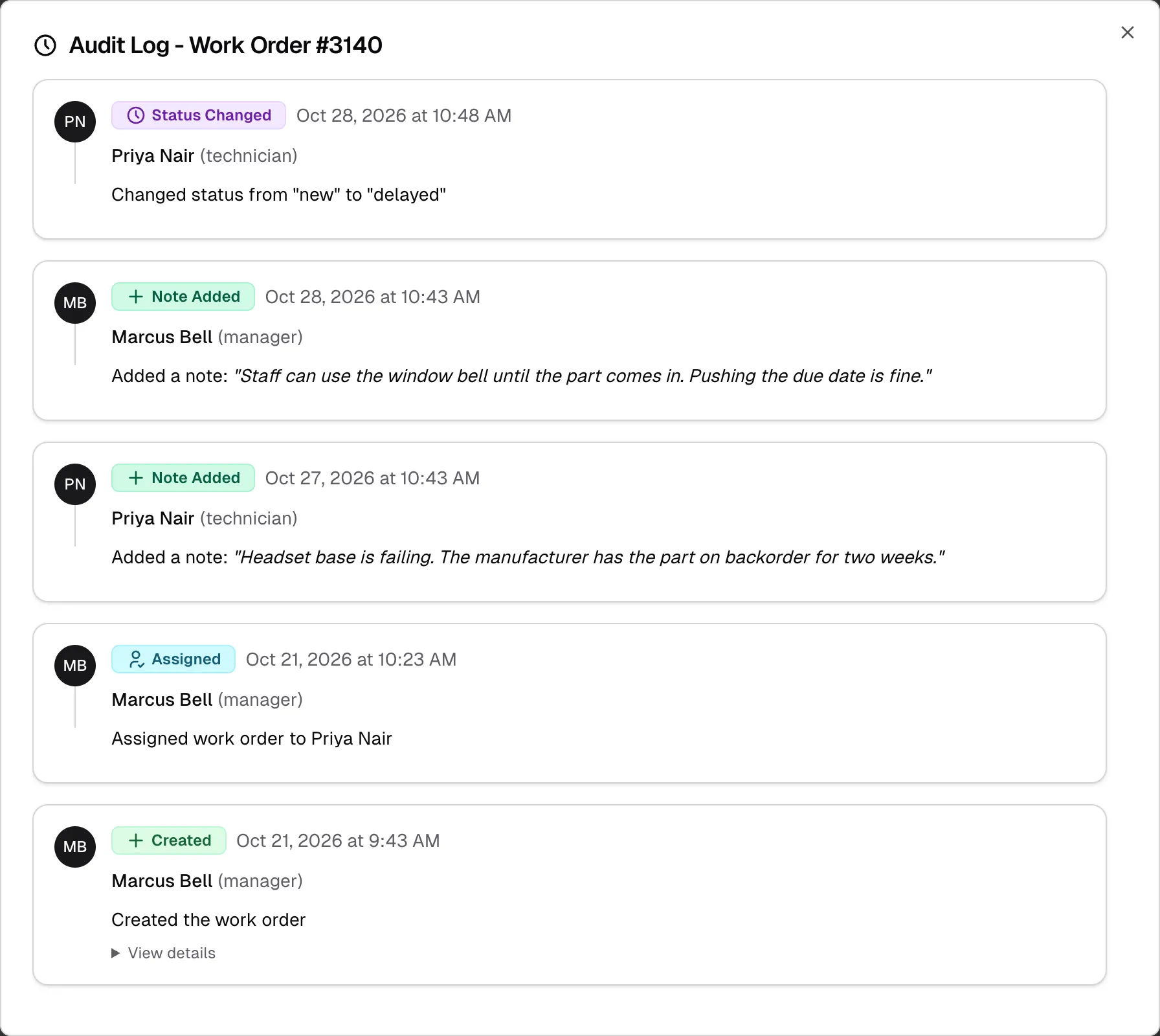
The newest entries are at the top. Each entry shows the person’s name and role, the date and time, and what happened. The log shows the 100 most recent entries.
What’s recorded
Section titled “What’s recorded”| Entry | What it shows |
|---|---|
| Created | Who created the work order. Select View details to see what was entered at the start. |
| Field Updated | A change to the task type, priority, location or due date, with the old and new values |
| Status Changed | The old and new status |
| Assigned, Unassigned | Who the work order was assigned to or removed from |
| Note Added | The text of the note |
| Note Deleted | The deleted note’s text and who wrote it |
| File Attached | The file name |
| File Deleted | The file name |
What to watch for
Section titled “What to watch for”- Files added during creation aren’t listed. Files you choose while creating a work order don’t get a File Attached entry. Files added afterward do.
- Due dates can appear unchanged. If a work order has a due date, each save adds a due date entry, even if nobody changed the date. Compare the two dates to tell.
- The log can’t be edited. There’s no way to change or remove an entry from this window.