
Close a work order
Close a work order when the work is finished. Its status changes to Closed, and it counts as completed on the Dashboard.
Who can do this: Admin, Manager, Technician, Tenant
-
Open the work order and go to the Details tab.
-
Set Status to Closed.
-
Select Update Work Order.
If your facility doesn’t require a closing note, you’re done. You’ll see Work order updated, and the list shows the work order as Closed.
If the Close Work Order window appears
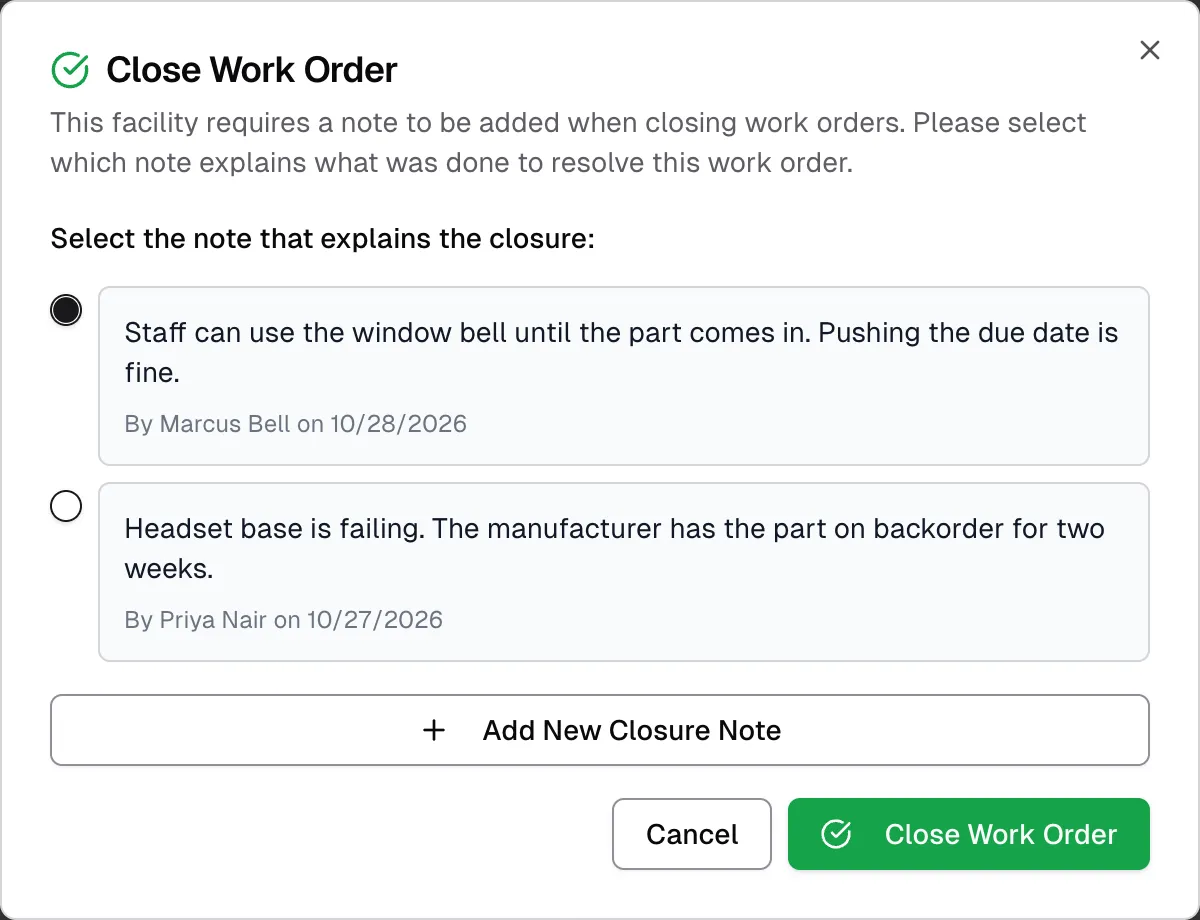
Section titled “If the Close Work Order window appears”This window appears when your facility requires a note to close work orders. The work order doesn’t close until you finish these steps.
-
Select the note that explains what was done.
-
If none of the notes fit, or there aren’t any, select Add New Closure Note. Describe what was done and select Add Note. Your new note is selected for you. If the work order has no notes, this form is already open.
-
Select Close Work Order.
You’ll see Work order closed successfully. Any other changes you made on the Details tab are saved at the same time.
If you select Cancel, the work order stays as it was. A note you added in this window is kept.
If you can’t close it
Section titled “If you can’t close it”| What you see | Why | What to do |
|---|---|---|
| “This facility requires notes to be added before marking work orders as closed.” | The facility requires a note and this work order has none. | Add a note on the Notes tab, then try again. |
| “You have view-only access to work orders.” | You have the Viewer role. | Ask someone with another role to close it. |
| “This facility is disabled.” | The facility is disabled. | Ask an Admin to enable it. |
After you close it
Section titled “After you close it”- The work order stays in the list. To hide closed work orders, use the Status filter.
- You can still add notes and attachments, unless your facility has Lock closed work orders on.
- Days Open keeps counting, and a past due date still shows as Overdue.
Reopen a work order
Section titled “Reopen a work order”Who can do this: Admin, Manager, Technician, Tenant
-
Open the work order and go to the Details tab.
-
Set Status to any status other than Closed.
-
Select Update Work Order.
If the Status field is unavailable, see Lock closed work orders.