
Get started as an Admin
Your company is already set up for you. These are the first things to do as a new Admin, in order. Facilities come first, because people need a facility before they can see any work orders.
Who can do this: Admin
-
Check which facilities you can see. Open the facility switcher at the top of the sidebar. It lists only the facilities you created or are assigned to.
-
Create any facilities you need. Select Facilities, then Create New Facility. Fill in Facility Name, Address Line 1, City, State and ZIP Code, then select Submit. You’re assigned to the new facility automatically, and it starts with a standard list of task types.
-
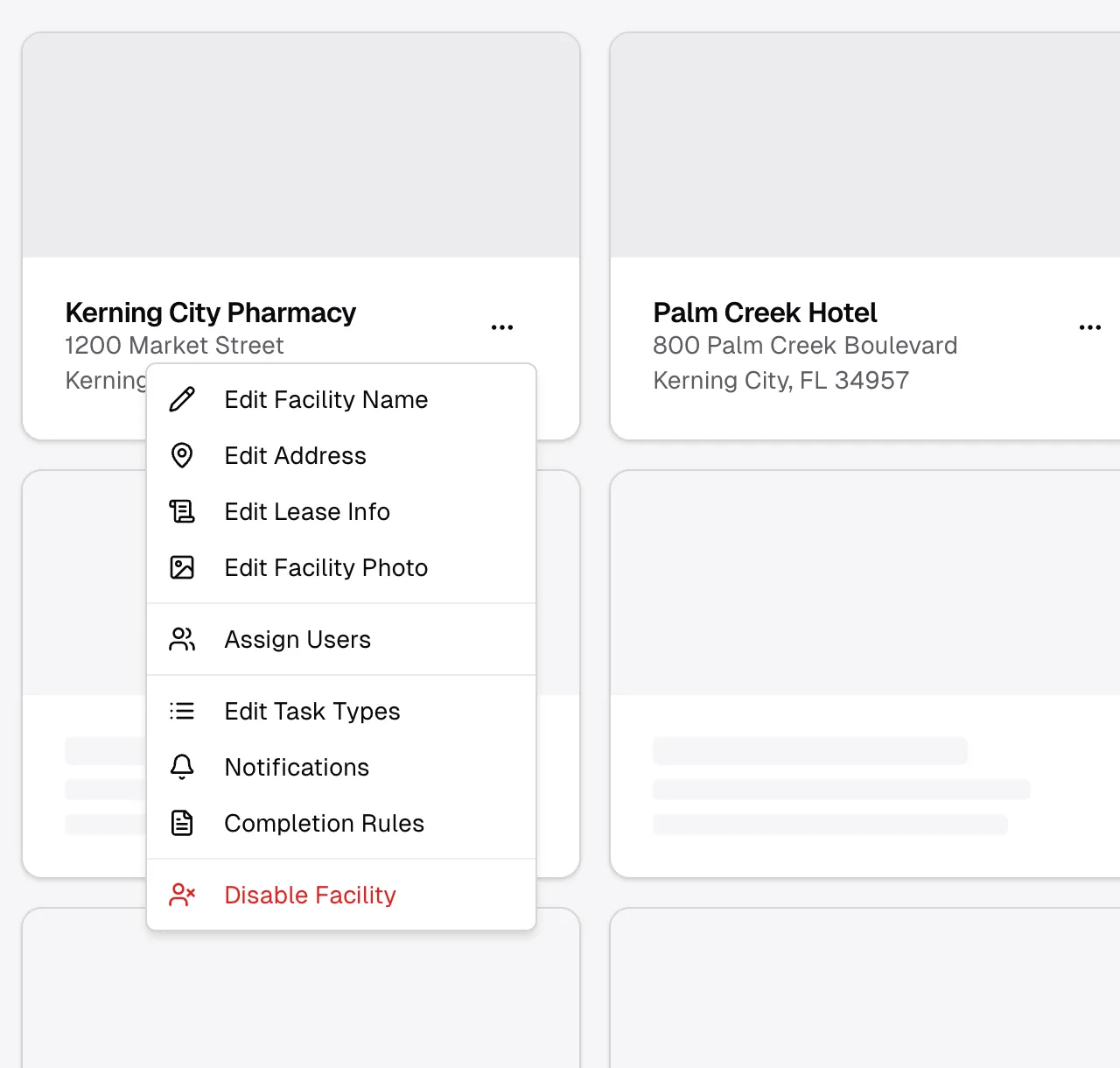
Review the task types. On the facility’s card, open the three-dot menu and select Edit Task Types. People pick from this list when they create a work order, so make it match the work you do.
-
Bring in your team. Select Users, then Invite User. Invited people have to register and be approved before they can log in. If someone needs access right away, use Add User instead.
-
Assign people to facilities. On the facility’s card, open the three-dot menu and select Assign Users. Check each person who should have access, then select Update. People show up in this list once they’ve registered, not while their invitation is pending.
-
Choose who gets notified. In the same menu, select Notifications to decide who hears about new work orders and changes at this facility. Each person can also set their own notification preferences.
-
Set your completion rules. In the same menu, select Completion Rules to decide what’s needed before a work order can be closed. See Completion rules.
-
Create a test work order. Select Work Orders and create one to check that the right people are notified.
If your company tracks projects, invoices or purchase orders, your next stop is the Finance overview.